In brief
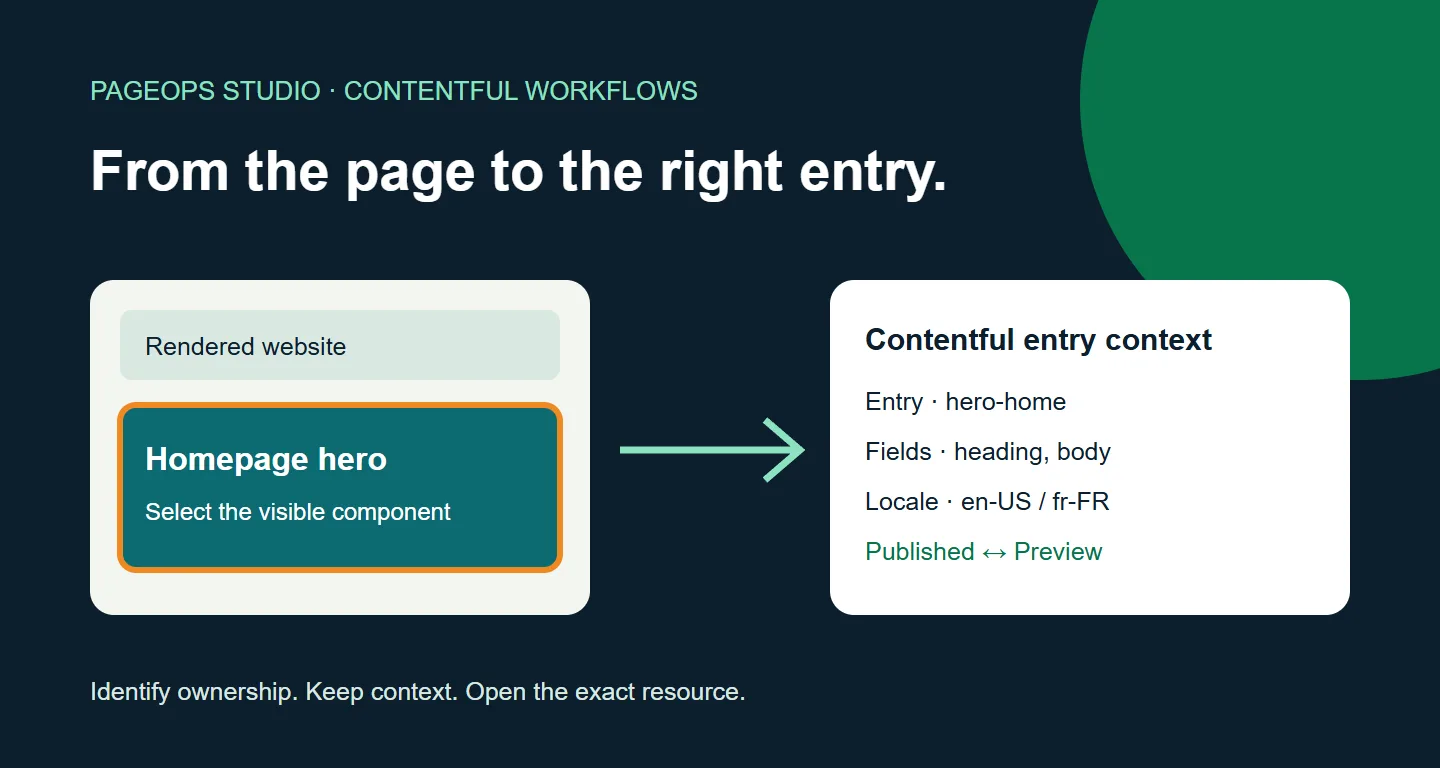
The quickest route to the right Contentful entry starts with the rendered component.
To connect a webpage to its Contentful content, preserve the entry and field identifiers when rendering each component, carry the correct space, environment, and locale context, and use that mapping to open the responsible resource. Inspector Mode already provides a native editing connection inside configured Live Preview. A custom browser assistant can extend the surrounding workflow with a page-wide inventory, repeated-component highlighting, and contextual comparisons. It should complement that native capability, not pretend Contentful lacks it.
Why finding a Contentful entry from a webpage can be difficult
A content team spots an outdated sentence on the website. The request sounds simple: update that sentence, check the French version, and confirm the change before publication. But the URL does not tell the editor which entry owns the sentence. The visible page may combine a page entry, a reusable hero, a shared call to action, and several referenced sections. Searching the page title can bring up the page entry without revealing the component that needs attention.
This is a consequence of structured content, not a defect in the CMS. Reusable entries let teams maintain shared content and assemble different experiences. The challenge appears when the website hides those relationships from the person reviewing it. The editor sees a paragraph; the content model sees an entry, a field, a locale, an environment, and a chain of references. A useful editorial tool reconnects those views without flattening the model.
Consider a fictional product page with a reusable hero and a shared contact button. The hero heading might belong to one entry while the button label belongs to another. Editing the parent page may not change either. Editing the shared button could affect several pages. Identifying the responsible entry is therefore only the first decision. The next question is whether the intended change belongs to the shared resource or to a page-specific alternative.
Start with Contentful Live Preview and Inspector Mode
Before building another interface, assess the editing experience already available to your team. Contentful Live Preview brings editing and previewing together, with optional live updates and Inspector Mode. These features are a sensible starting point when the frontend is configured to support them. The official Live Preview documentation describes the native capabilities and their setup boundaries.
Inspector Mode connects tagged content to its corresponding entry field. Contentful documents both manual tagging with data attributes and automated tagging through Content Source Maps; the latter has plan-specific availability. Manual tagging requires the appropriate metadata on the fields you want to inspect. A browser extension should not be marketed as the only way to make that connection. Review the Inspector Mode setup guide before deciding what additional tooling is justified.
A custom assistant becomes interesting when the team needs context beyond that individual editing action. For example, a reviewer may want an inventory of the entries rendered across the whole page, a way to find repeated occurrences, or a clear explanation of which environment and locale are being inspected. Establish those requirements first. If the native workflow already answers the problem well, adding another layer may create more settings than value.
Build a reliable rendered-page-to-entry mapping
The mapping should follow component ownership. When the frontend renders a heading from a hero entry, attach the source entry identifier and field identifier to that heading. If the button comes from a referenced call-to-action entry, give it its own mapping. Do not assign every child element to the parent page simply because the parent supplied the reference. That shortcut produces a confident-looking interface that opens the wrong resource.
Keep resource identity separate from presentation. A friendly component label helps editors recognize what they selected, but it cannot replace an identifier. Likewise, a URL slug is useful for finding a page, yet it is not a dependable substitute for an entry ID. Slugs can change or be reused across locales. A configured assistant should resolve an explicit mapping rather than guessing from the text, the heading, or the public address.
Include the space and environment context where needed, particularly when an implementation combines content from different sources. Carry the locale that the frontend actually requested. A default may be appropriate for a simple site, but a silent default is risky when editors switch between markets or environments. Treat missing context as something to resolve or report, rather than silently opening a plausible-looking entry elsewhere.
Then distinguish unique resources from rendered occurrences. Four entries might generate twelve tagged elements because several fields or repeated components use the same source. Editors should see both counts, with clear labels. Grouping by entry makes the inventory readable; keeping individual occurrences makes highlighting useful. A good test is whether selecting one resource locates every expected occurrence without outlining unrelated content.
A practical workflow for content teams
1. Start with the visible problem
Open the relevant page and choose the component that needs attention. Confirm that the selected content is the sentence, image, or button involved in the request. A component inventory is helpful only when its labels connect to something the editor can recognize. Highlighting provides that confirmation and helps avoid changes to a similarly named but unrelated entry.
2. Review ownership before editing
Read the resource type, detected fields, environment, and locale. Check whether the entry is shared, whether the visible component is repeated, and whether the task is a global correction or a market-specific adaptation. A page-wide list does not necessarily prove where the entry appears elsewhere across the estate. Wider impact still needs a reference review within the authorized CMS workflow.
3. Open the responsible resource
The destination should retain the resolved space, environment, and entry. Where the integration supports locale-aware navigation, preserve that context too. An authorized user should arrive at the intended resource, while Contentful permissions continue to control what they can do. If a resource cannot be resolved, explain the gap instead of opening a broad search and presenting it as an exact match.
4. Verify the result in the right state
After editing, inspect the appropriate preview, then follow the established approval and publishing process. Finally, check the live experience that visitors receive. Opening the editor is not proof of publication. Nor does a successful API response prove that a deployed frontend has refreshed its cached output. The final verification should reflect the delivery architecture used by that customer.
Keep locale, fallback, and publication state distinct
A localized page can look complete even when some fields do not have directly authored values in the requested language. Contentful can return fallback values according to the configured locale chain. The localization reference explains locale-specific retrieval and the all-locales representation. That behavior matters when interpreting a completeness check: displayed text is not the same evidence as a directly populated locale field.
For an editorial review, define what the check means before adding a warning. Is a direct local value required for every localized heading? Is fallback allowed for a product name? Are some fields intentionally not localized? Those choices belong to the content model and governance rules. A missing local value can be actionable without implying poor translation. Conversely, a populated field can still contain the wrong language or wording.
Publication context introduces a separate distinction. Published content and preview content may differ because changes have not yet been published. The Content Preview API overview describes access to the latest entry version through the preview service. In a configured comparison, show which values came from which source and keep the resource identity and locale aligned. Without Preview access, report that comparison is unavailable rather than inferring a draft state.
A field comparison is also not a complete visual diff. The frontend can transform, omit, or combine values before rendering them. Compare the right evidence for the decision: authored values for content changes, referenced resources for dependencies, and the rendered page for what a visitor sees. Labelling these layers makes the result easier to trust and prevents an editor from treating every difference as an error.
Protect credentials and respect implementation boundaries
A public demonstration should show the workflow without providing access to private content. Use fictional examples, fixed comparison values, and simulated editor destinations. Visitors can understand the interaction without receiving a delivery token, a preview token, or access to an internal space. Explain that boundary beside the demo rather than hiding it in a disclaimer far from the controls.
For a customer implementation, review approved hosts, token handling, required API access, and distribution before rollout. Preview access deserves particular care because it can expose unpublished material. Keep credentials out of screenshots, downloadable demonstration packages, page markup, and public repositories. A read-only assistant should not quietly gain management or publishing permissions simply because a new comparison feature needs more context.
Performance belongs in that review too. Cache stable resource metadata where appropriate, avoid repeating equivalent requests for every field marker, and cancel stale work when the page or locale changes. Ask for the smallest useful set of data, then make refresh behavior visible. The editor should know whether the panel describes the current page or a previous inspection. Speed is valuable only when the information remains correctly scoped.
Test a focused Contentful editorial pilot
Start with a small but representative sample: a reusable hero, a referenced call to action, a second locale, a deliberate preview change, and an entry shared across multiple pages. Include a negative case with missing mapping or insufficient access. These examples test the decisions editors will actually make, rather than merely demonstrating that the assistant can display a list.
Measure concrete outcomes during the pilot: whether users reach the correct resource, whether highlights match the intended component, whether context survives a locale switch, and whether unavailable data is explained. Collect confusion as carefully as success. A user who opens the right entry but misunderstands a shared resource still needs a clearer workflow. Avoid publishing time-saving claims until a defined task and baseline have been measured.
The PageOps Contentful solution page outlines the working foundation and implementation requirements. You can try the install-free demo to see the sequence, or read the product story for a fuller explanation. If the workflow fits your team, discuss a focused pilot built around your frontend, content model, and permissions.