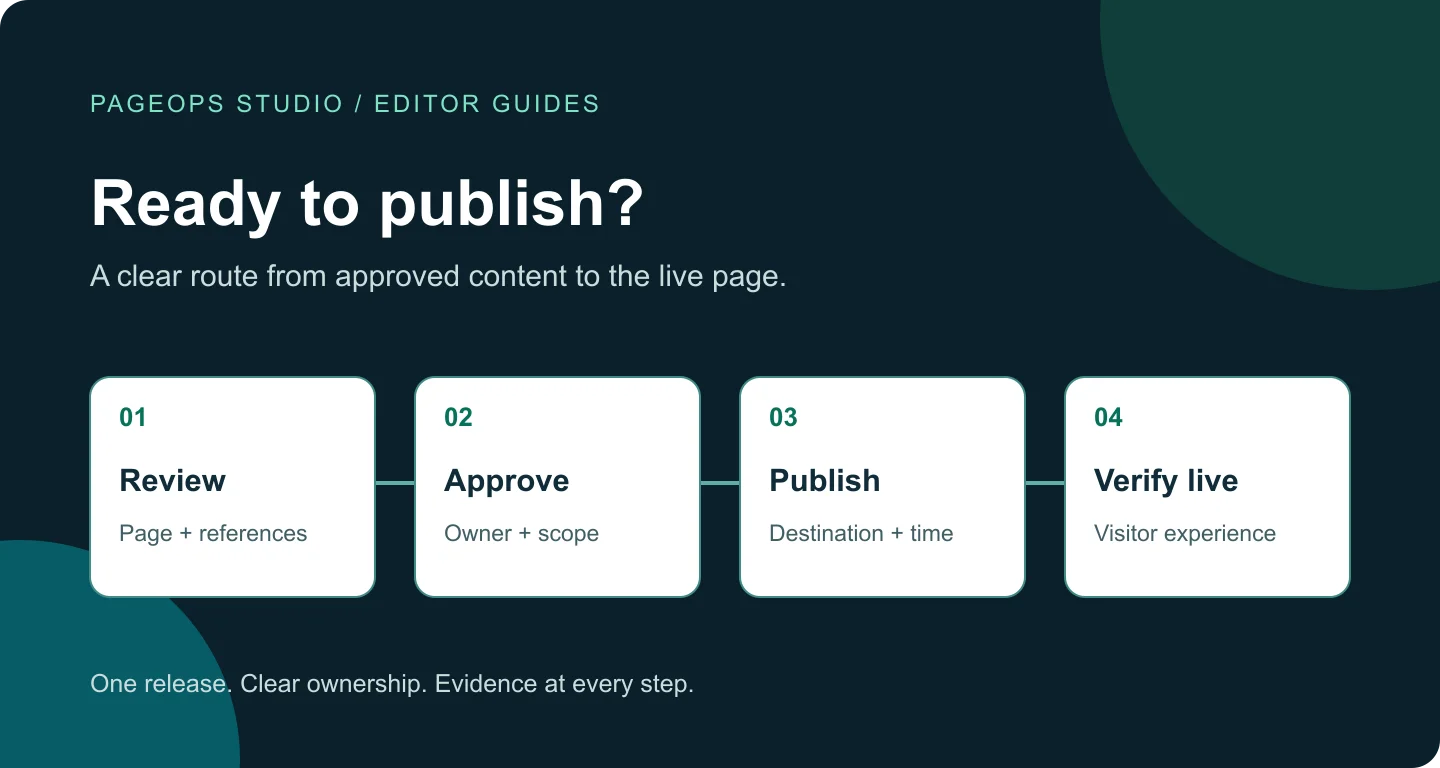
In brief
Publication is complete when the approved content reaches the intended audience.
An AEM publishing checklist connects five decisions: which page is changing, who approved it, which related content must travel with it, when it should become available, and how the live result will be verified. A successful authoring action is useful evidence, but the release also needs a check of the public destination. This guide gives content teams a repeatable process for ordinary updates and scheduled releases, with clear handoffs when an administrator needs to investigate.
1. Start the AEM publishing checklist with the exact page
A request such as “publish the new service offer” leaves too much room for interpretation. Record the authoring path, public URL, market, language, requested change, and responsible editor. Include a short acceptance statement: for example, the French service page must show the approved offer, link to the correct enquiry form, and display the revised terms. That statement becomes the basis for review and the final live check.
Confirm whether the task concerns one page, a section, or a group of markets. Similar titles can exist under several content roots, and a language master may not be the page visitors receive. Use the repository path as well as the display title. If the change involves inheritance or translation, settle ownership first; our guide to AEM language masters and Live Copies explains that separate decision.
Adobe distinguishes the author environment from the publish environment, with access rights governing authoring actions. AEM as a Cloud Service also provides a preview service. These destinations serve different purposes, so name the environment in the release record rather than writing only “checked in AEM.” See Adobe’s authoring and publishing concepts for the underlying model.
Before editing, identify who will check the release after publication. For a small change, that can be the editor plus a reviewer. For a time-sensitive launch, agree on a named contact and a fallback decision if the page is not ready. A short release note is more useful than an informal assumption that somebody else will verify it.
2. Confirm approval separately from workflow completion
Check that the reviewer approved the content currently being released. An approval for an earlier draft does not cover later changes to an offer, claim, price, or legal statement. If edits followed approval, ask whether another review is required under your team’s process. Make that decision before scheduling, while there is still time to resolve questions.
A workflow’s name, payload, current step, and assignee provide context. Do not assume a completed workflow means a page is publicly available: the workflow may concern translation, review, movement, or another operation. Equally, a running workflow does not explain its own delay. Look at what action remains and who can perform it.
Adobe’s AEM Inbox documentation describes workflow work items and notifications that help users find actions requiring attention. Where your permissions allow, use the relevant task to confirm ownership. If the expected task is missing, send the page path and release context to the workflow owner rather than starting a duplicate process.
For audit purposes, keep approval evidence alongside the release note: who reviewed it, when, and which content they reviewed. The goal is a clear handoff, especially when one person edits and another publishes. Teams using custom workflows should document the meaning of their own statuses; a generic checklist cannot determine what a customer-specific approval step guarantees.
3. Use Manage Publication to review what will go live
The intended page is only part of the release scope. A changed page may depend on an image, document, or other referenced content. Start with an inventory of what changed and which dependencies must be available with it. A new brochure link, for example, needs both the correct destination and an accessible document.
In AEM as a Cloud Service, Manage Publication offers controls for references, child pages, destination where available, and timing. Review these deliberately instead of treating the wizard as a sequence of confirmation screens. AEM 6.5 has its own publishing guidance; labels and options depend on the deployment and configuration.
- Check that the selected page path matches the release note.
- Include child pages only when they belong to this release.
- Review referenced content before confirming the operation.
- Check for unrelated drafts within the proposed publication scope.
- Confirm the destination and whether the action is immediate or scheduled.
Use a second review for broad releases. Ask a colleague to compare the selected scope against the request, particularly where multiple markets or shared assets are involved. This review can be quick: the important question is whether every included item belongs to the release and every required item is accounted for.
When a required asset is absent from the reference list, investigate how the component uses it. Do not assume a reference has been detected simply because an image appears in authoring. Record the asset path and involve the component or platform owner when necessary. Avoid expanding publication to an entire folder merely to compensate for an unexplained dependency.
4. Make scheduled publication an explicit handoff
Write the launch date, clock time, and time zone in the release note. “Tomorrow morning” is ambiguous across countries. Confirm which time the scheduling interface represents and have the responsible publisher repeat it back in the agreed format. Also decide whether the content needs a later withdrawal or replacement.
Scheduling publication for later starts a workflow in the documented AEM publishing process. Treat that scheduled operation as something to verify after saving: confirm the payload, intended time, and responsible owner. If the release moves, follow your approved cancellation or rescheduling procedure and check that an older schedule will not still run.
Adobe explains that scheduled publication in AEM as a Cloud Service passes through workflow processing, content distribution, Publish, cache invalidation, and delivery. It does not promise a fixed interval before content becomes visible. For critical launches, agree on a realistic verification window and test representative cases beforehand. See Adobe’s guidance on scheduled publication delays.
Keep the release scope stable after scheduling. If a colleague changes the page or replaces a referenced asset, revisit the review and timing assumptions. Record who is watching the launch and how they will report success or delay. A schedule without an owner can leave a technically completed operation unverified for hours.
5. Check the visitor journey in preview, then verify live
Use preview to inspect the experience before the public release. Check the page at a narrow and wide viewport, read the updated copy, open the primary links, and confirm the intended form or download destination. Include the page title, description, headings, and image text alternatives in the editorial review when they changed.
Distinguish the editor’s preview mode from a separate preview service. Adobe’s Sites preview documentation explains that the service can expose experiences that are not visible in the author environment. The destination available to your team depends on its installation. Record which preview was checked so another editor can reproduce the result.
After publication, open the public URL and repeat the release’s acceptance checks. A successful response alone does not prove the right content is present. Confirm the exact changed text, the expected image or document, the locale, and the final destination of important links. If a URL redirects, check whether that destination is intentional for this release.
Consider a service campaign with a new brochure and enquiry link. The live check should confirm the revised offer, open the brochure, and reach the intended enquiry page. It should not submit a real customer enquiry merely to demonstrate that the form exists. Use an agreed test process if a complete form submission is required.
Close the release only when those checks pass, or record a named exception with an owner. Save the verified public URL and check time. This creates a useful answer to “what was live when we approved the launch?” without requiring editors to interpret technical infrastructure logs.
6. Investigate stale content with evidence
If the public page still looks old, first compare the expected path and locale with the page actually opened. Then check the publication state and relevant workflow. Adobe identifies browser or Dispatcher caching and replication problems as possible causes of stale published content in its authoring troubleshooting guidance. The symptom alone does not identify which cause applies.
Give the platform team a compact report: authoring path, public URL, intended change, publication time with time zone, workflow reference if available, and what the visitor currently sees. Include one screenshot or exact text comparison. Ask for an investigation before repeatedly republishing a large section, which makes the sequence of events harder to understand.
A custom browser extension can shorten navigation between the relevant views and display available status information, but the source and freshness of that information matter. Our AEM workflow solutions start by mapping those destinations and responsibilities. The useful outcome is that the editor reaches the correct page and knows what to verify next.
Keep a lightweight record of recurring failures. If releases repeatedly stall at approval, clarify ownership. If references are often missed, review the component’s dependency handling. If teams frequently check the wrong locale, improve navigation. Use these observations to refine the checklist around actual release problems.
Common AEM publishing questions
Does a completed workflow prove that the page is live?
No. Check what that workflow does, which page it concerns, and whether the approved change is visible at the intended public URL.
Should editors republish an entire section when one page looks stale?
Start by checking the affected page, its dependencies, and the release evidence. Escalate unexplained delivery problems to the platform owner before broadening the publication scope.
Can the same checklist be used for AEM 6.5 and Cloud Service?
The editorial questions apply to both. Adapt the actual buttons, preview destinations, permissions, and workflow steps to your installation and the relevant Adobe documentation.